
How to
How to Record Your Screen Online
By The Screen Record team · Published · Updated
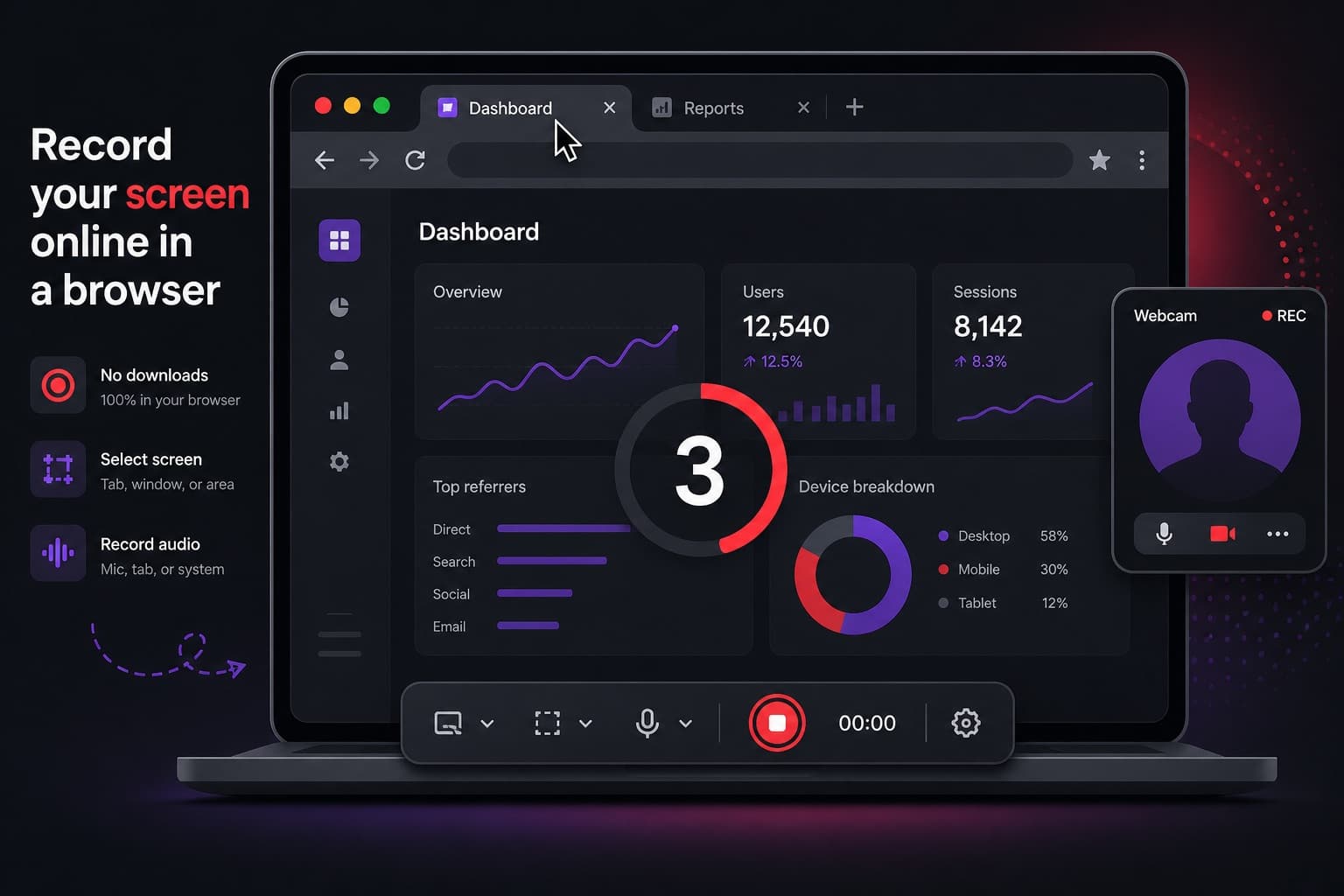
You can record your screen online from a desktop browser. You do not need to install an application. This guide walks through the Screen Record workflow: choose a source, add audio or camera, record, then share or download.
Before you start
Use a desktop computer. Chrome or Edge give the most reliable screen capture and tab audio. Close anything you do not want in the recording, including notifications if you are capturing the full screen.
If you plan to talk, check the microphone in a quiet room. If you plan to show your face, sit with light in front of you rather than a bright window behind you.
Step 1 — Open the recorder
Go to the Screen Record app and start a new recording. Sign in with email or Google if you are asked. New accounts receive 10 credits; recordings up to five minutes do not use them.
Step 2 — Choose a tab, window or screen
Pick Screen, Window or Tab. The browser then asks you to confirm the exact display. For a website, a virtual tour or a document in the browser, a tab is usually the cleanest choice. Tick “Share audio” in the browser dialog if you want sound from that tab.
Step 3 — Add microphone and camera
Turn the microphone on and watch the level meter move as you speak. Turn the camera bubble on if you want a webcam overlay, then choose the corner and size. You can leave the camera off for a screen-only recording.
Step 4 — Record, pause and stop
A short countdown runs before capture begins. Use pause if you need to find a page or collect your thoughts. Stop from the on-screen control, or from the browser’s “Stop sharing” bar — both end the recording safely.
Questions
Is it free to record my screen online?
With Screen Record, the first five minutes of every recording are free. You only use credits if the saved, trimmed video is longer than five minutes.
Can I record online on a phone?
Screen Record is desktop-first. Phone browsers generally do not offer the same screen-capture APIs. Use a laptop or desktop with Chrome or Edge.
Will the recording include other people on a call?
Only if their video or audio is visible or audible in the tab, window or screen you chose to capture. A tab recording of a tour, for example, will not include a separate meeting unless that meeting is in the same tab.