
How to
How to Record a Browser Tab
By The Screen Record team · Published · Updated
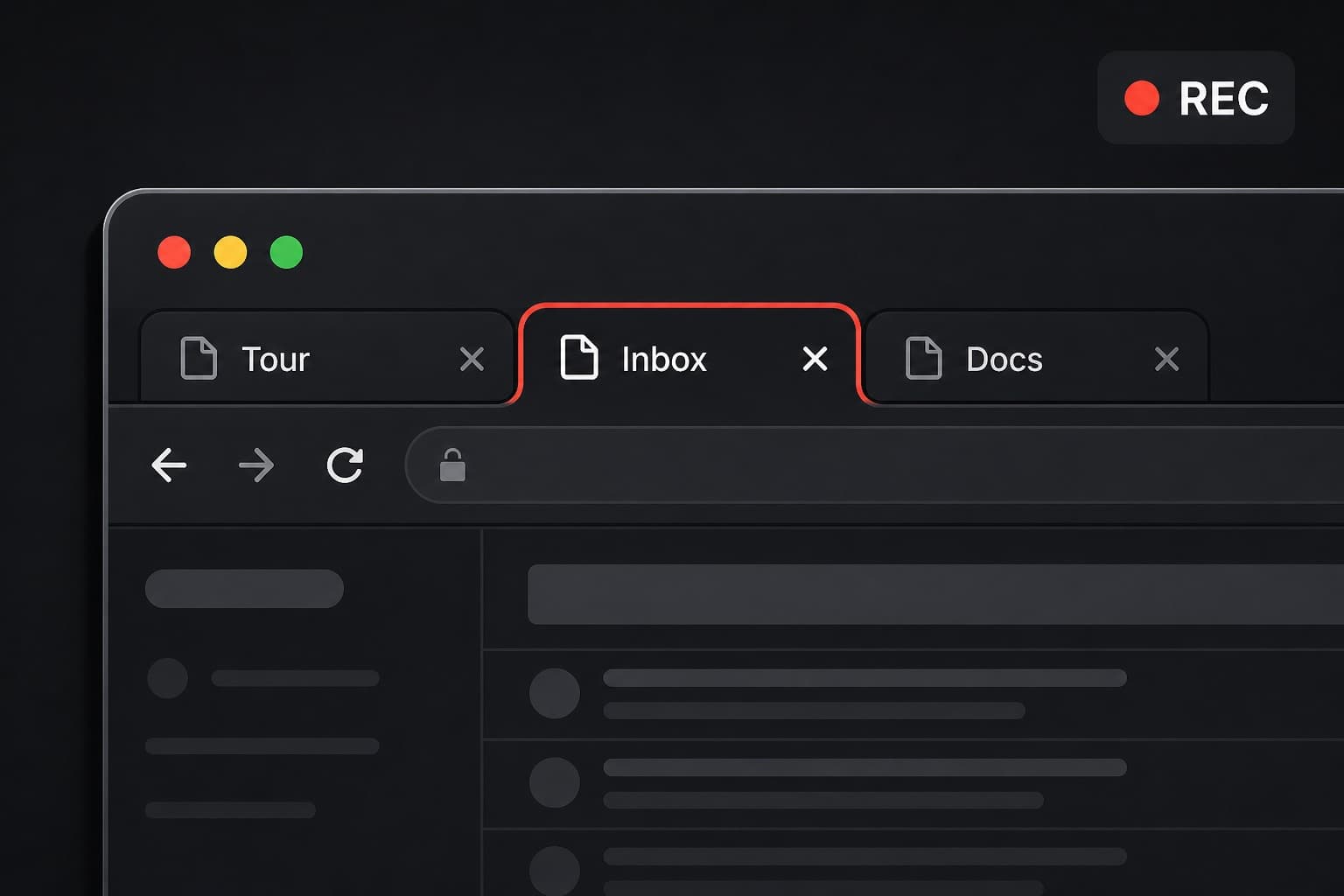
Recording one browser tab is the cleanest way to capture a website, a web app or a 360° tour. Viewers see only that page. They do not see your bookmarks bar clutter, other windows, or a notification that appears on the desktop.
Why record a tab instead of the whole screen
A full-screen recording includes everything: the dock, other monitors if you share the wrong display, and any pop-up. A tab recording is framed to the page. It is also the capture mode most likely to include the page’s own audio in Chrome.
How to record a tab in Screen Record
Start a new recording and choose Tab. When the browser dialog appears, select the correct tab — not the Screen Record tab itself unless you intend to record the recorder. Enable sharing audio if you want sound from the page.
Put the tab in the state you want to show before the countdown ends: the right URL, the right zoom level, and any cookie or login wall already handled.
Tips for a watchable tab recording
Increase zoom if text will be read on a phone. Move slowly through menus. Pause speaking for a second after each click so the viewer can see what changed. If you need another site, open it in the same tab or stop and start a new take — jumping between windows mid-recording is how full-screen captures become messy.
After the recording
Trim the start if you spent time finding the page. Share the link, or download the video once it has processed. For a tour walkthrough, the tab recording is usually the file you send to a buyer or colleague.
Questions
Can I record a Chrome tab with audio?
Yes, in desktop Chrome, when you enable audio sharing in the tab picker. That is the most reliable way to capture sound from a web page.
Will the recording include my other tabs?
No. Only the tab you selected is captured, unless you switch to full screen or another window.
Can I record a window instead?
Yes. Choose Window if the application is not in the browser. You will not usually get that application’s audio on macOS.