Two kinds of audio
Your microphone is commentary. Tab or system audio is what the computer is already playing. Most explanations only need the microphone. Tour walkthroughs and product videos often need both.
Microphone setup
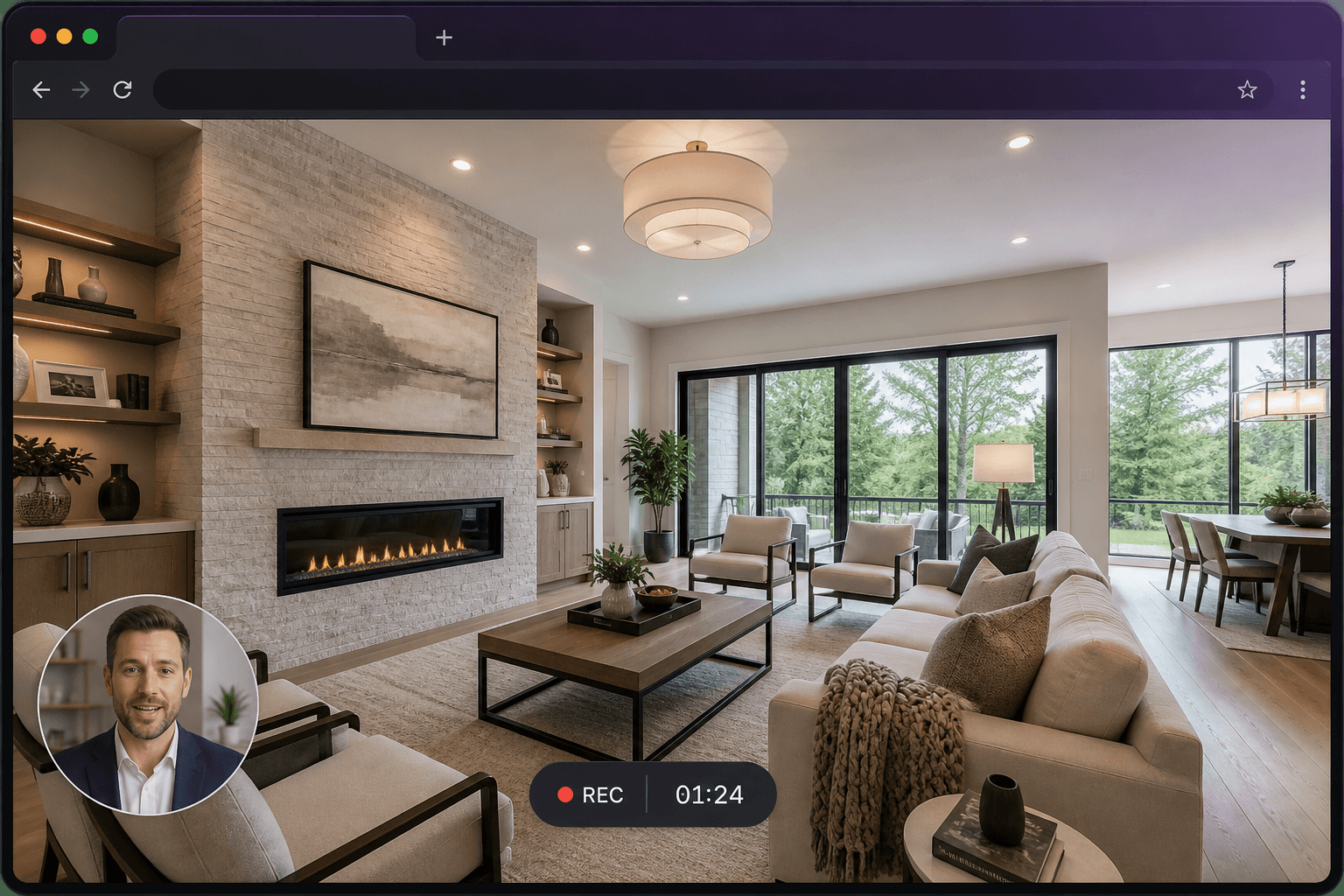
Turn the microphone on in the recorder, pick the correct device, and watch the level meter. Pause or mute if you need a break. The camera bubble is independent — you can talk without appearing on screen.
Capturing tab audio
Choose a tab as the source and enable audio sharing in the browser prompt. This is the most widely supported way to include computer sound, including on macOS.
Captions after you save
Once a recording is saved, a transcript and captions are included. They help people watch without speakers and make the video easier to skim. Translating those captions, or generating spoken narration in another language, is optional and priced separately in credits.
Questions
Can I record internal audio on a Mac?
Record the Chrome tab and share tab audio. Do not expect full-desktop system audio from a macOS screen capture in the browser.
Is microphone recording optional?
Yes. You can record a silent screen if you prefer, then rely on captions after saving.