
Guides
What Is a Screen Recorder and How Does It Work?
By The Screen Record team · Published · Updated
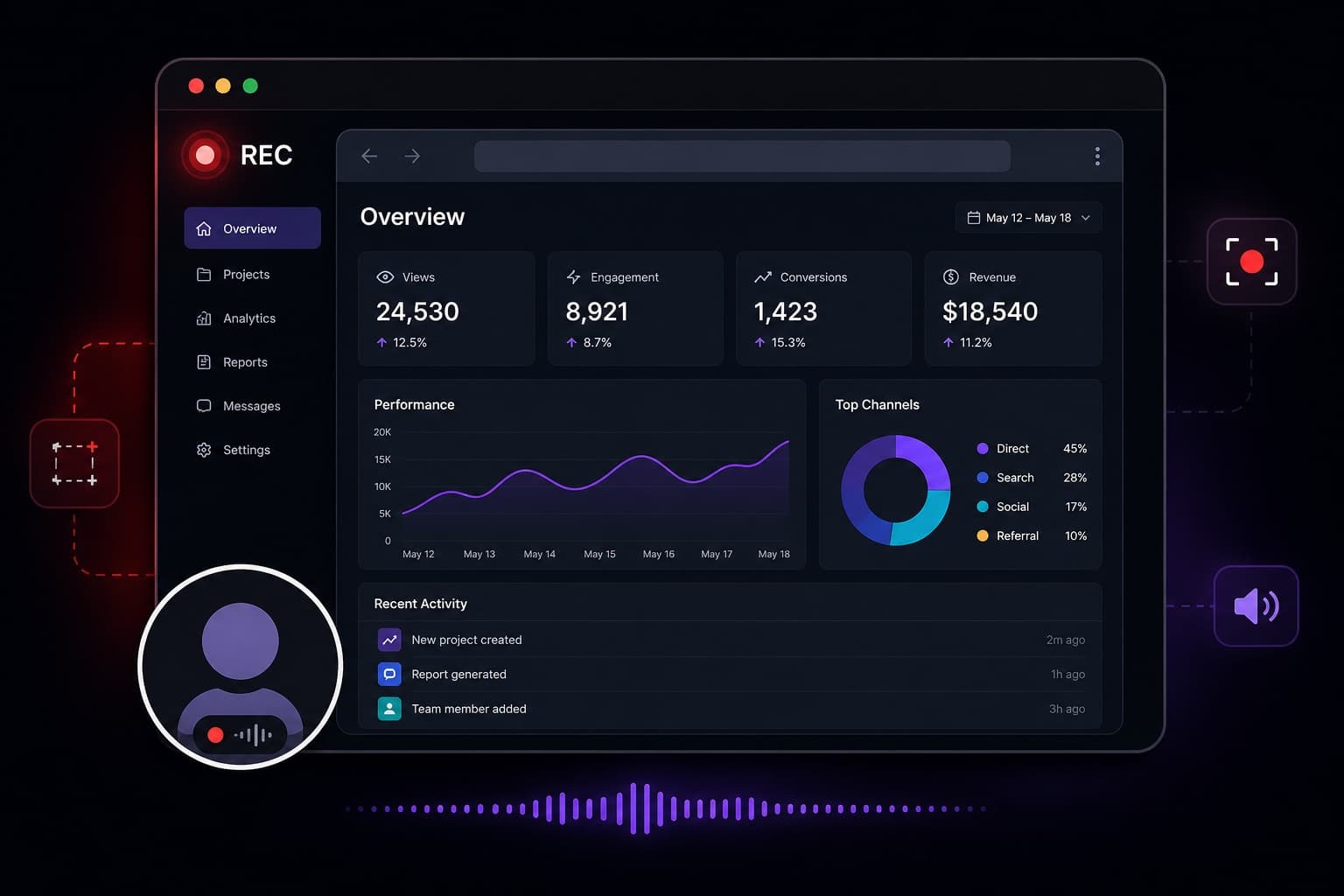
A screen recorder is software that captures whatever is happening on your display and turns it into a video. Most tools can also record your microphone, and many can add a webcam overlay so viewers see you as well as the screen.
People use screen recorders to explain software, walk through a website, give feedback, teach a process, or show a property listing without booking another live call. The useful result is not the file itself — it is a recording someone can watch, pause and rewind.
What a screen recorder captures
At minimum, a screen recorder captures pixels on a chosen display source: a full screen, one application window, or a single browser tab. That source is the picture your viewer will see.
Audio is a separate decision. Microphone audio is your voice. Tab or system audio is sound coming from the computer — a video playing in the tab, a tour’s background music, or an application alert. Webcam video is optional and usually shown as a small overlay rather than a second full-screen picture.
- Screen, window or browser tab
- Microphone narration
- Tab or system audio, where the browser allows it
- Optional camera overlay
How a browser screen recorder works
A browser-based recorder uses the screen-capture APIs already built into modern desktop browsers. You grant permission, pick a tab, window or screen, and the browser streams those frames into the page. There is no separate desktop installer.
Screen Record follows that model. After you stop, you preview the take and decide whether to save, trim, download or delete it. The first five minutes of every recording are free. Credits are only used if the finished, trimmed video is longer than five minutes and you choose to save, download or share it.
Browser tools compared with desktop apps
Desktop recorders can offer deep system-level capture, especially for full-computer audio on some operating systems. They also need installing, updating and, often, a paid licence before you can share a file.
A browser recorder is quicker to start: open the site, sign in, choose a source and record. That suits explanations, product demos, support replies and property walkthroughs where the value is the commentary, not a colour-graded film.
When a screen recording is the right format
Use a recording when sequence matters — the order of clicks, the path through a tour, or the way a layout should be read. Use text when the reader only needs a fact, a link or a decision.
A two-minute recording can replace a meeting that would have taken twenty minutes to schedule. It can also sit beside a listing or a ticket so the next person does not have to ask the same question again.
How to start with Screen Record
Open the recorder in desktop Chrome or Edge, choose a tab, window or screen, and turn on your microphone if you want to talk. Add the camera bubble if viewers should see you. When you finish, preview the recording and share a link or download the video.
Questions
Is a screen recorder the same as a screenshot tool?
No. A screenshot captures one still image. A screen recorder captures motion, cursor movement and, usually, audio so the viewer can follow a sequence.
Do I need to install a screen recorder?
Not with Screen Record. It runs in the browser. Desktop Chrome or Edge is recommended.
Can a screen recorder capture a browser tab only?
Yes. Recording a single tab is often cleaner than recording the whole desktop, because it hides other windows and notifications.